


WBG correct layer naming and structure
This checks that the layers used in InDesign match the layout structure required by Walker Books Group
Layers are an important method of separating different objects on the InDesign page. For co-edition interior pages, they must be used to split the text in different languages from the shared common images in a print run.
The layers that are expected differ for inerior pages and exterior covers and jackets.
This one GreenLight check works with different types of document as required, based on the naming of the file being checked.
Layering for inside pages
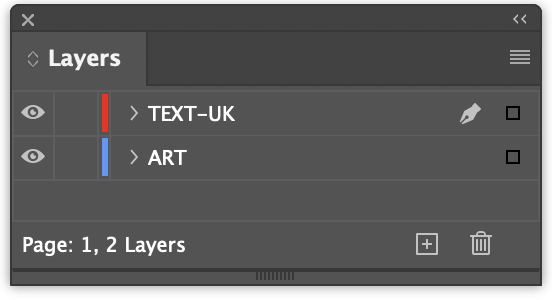
Choose InDesign Window menu > Layers to see the current layer structure and naming for the document in the Layers panel:
TEXT layers
The TEXT layer holds all objects that are able to edited, moved or removed for each language. These are usually text frames but can also contain other items such annotation lines, text on a path, tint panels, and text wrap objects.
The full name of the TEXT layer contains the language being used, e.g.
TEXT-UK - International English
TEXT-US - American English
TEXT-SPA - Spanish
TEXT-GER - German
Typically only one text layer is included in an InDesign document but it is possible to have multiple text layers if required.
ART layer
This layer contains images that are consistent between each translation.
The ART layer can contain any combination of objects using colour and placed images and may include transparency effects and blending.
It should not contain any translatable text.
The common images layer is named ART and is the bottommost layer in the Layers panel.
Note: Any spot colour inks e.g. Pantones are not split onto separate layers and are included with the main ART layer.
NOTES layer
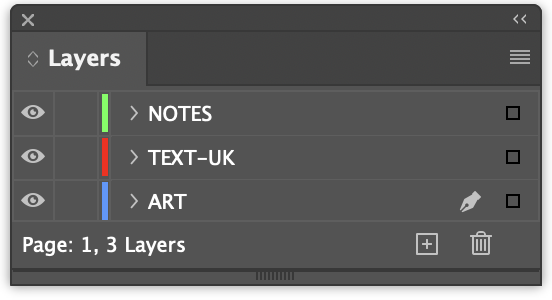
A layer named NOTES can be added if required. Anything added to this layer remains in the InDesign document but is not included when outputting PDF, JPG or translation files.
Therefore it is important to be sure that the NOTES layer does not contain any objects intended for output.
If required, multiple NOTES layers can be used, with each layer name starting with NOTES. Notes layers should appear on top of other layers.
Layering for jackets and covers:
Covers and jackets are not printed in a co-edition print run and are likely to include special print finishes such as foil and spot lamination.
Special Finishes are separated out onto different layers in InDesign with names that match the special finish swatches. e.g. FOIL-SILVER
Please refer to the Walker Books Group File Creation Policy for a list of special finishes for cover and jacket files.
NB: As the File Creation Policy states, if a special finish layer is not listed, GreenLight allows for additional layers to be created named with the word SPECIAL followed by the finish description e.g. SPECIAL-FUR.


