


Retrieving Biblio Edition ID
How to find a Biblio Edition ID number from BiblioSuite if needed
GreenLight can pull data from Bibliographic systems such as Biblio, Firebrand or ONIX to help create artwork and keep it in sync with production specs and sales requirements such as pricing.
When connecting to Virtusales BiblioSuite API GreenLight accesses this via an Edition ID which is linked to the ISBN.
If the Editon ID is not available to GreenLight then an alert is shown with an offer to go to BiblioSuite to quickly retrieve the Edition ID and continue.
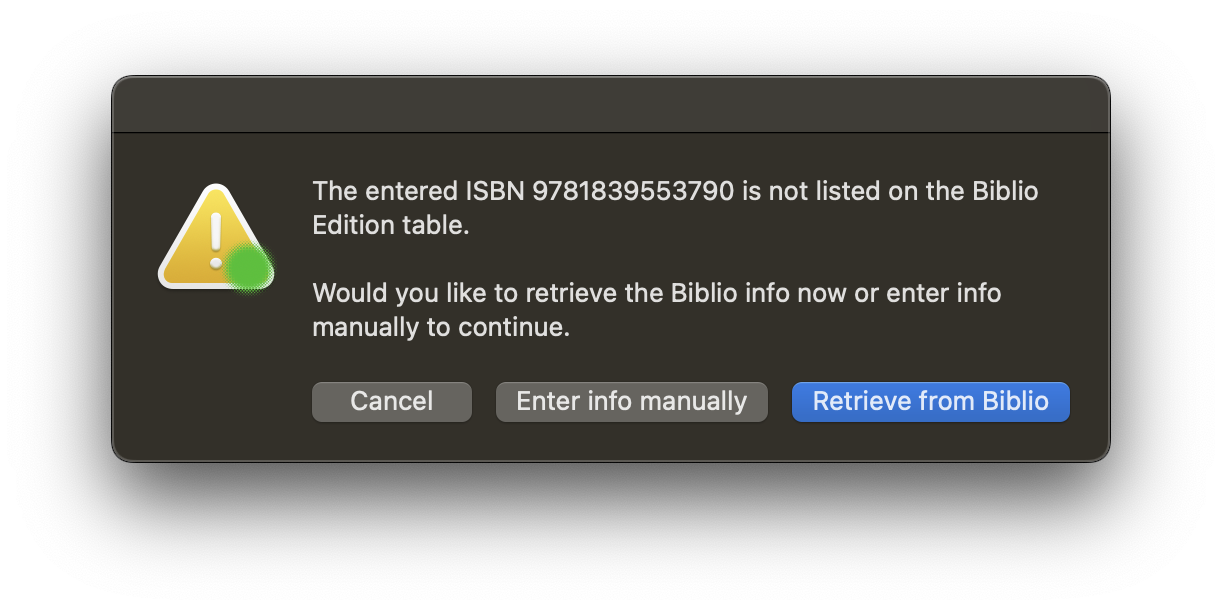
Choose Retrieve from Biblio to open a BiblioSuite page in your browser at the relevant Edition / General ISBN page.
Login to BiblioSuite if required, and make sure the page is the correct Edition / General page.
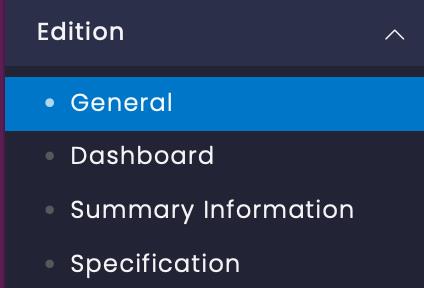
Copy the full URL from the browser address bar

With the Biblio Edition General URL number copied, paste the into the GreenLight dialog (shown with the Finder app to allow pasting) and choose Edition > General URL added to continue.
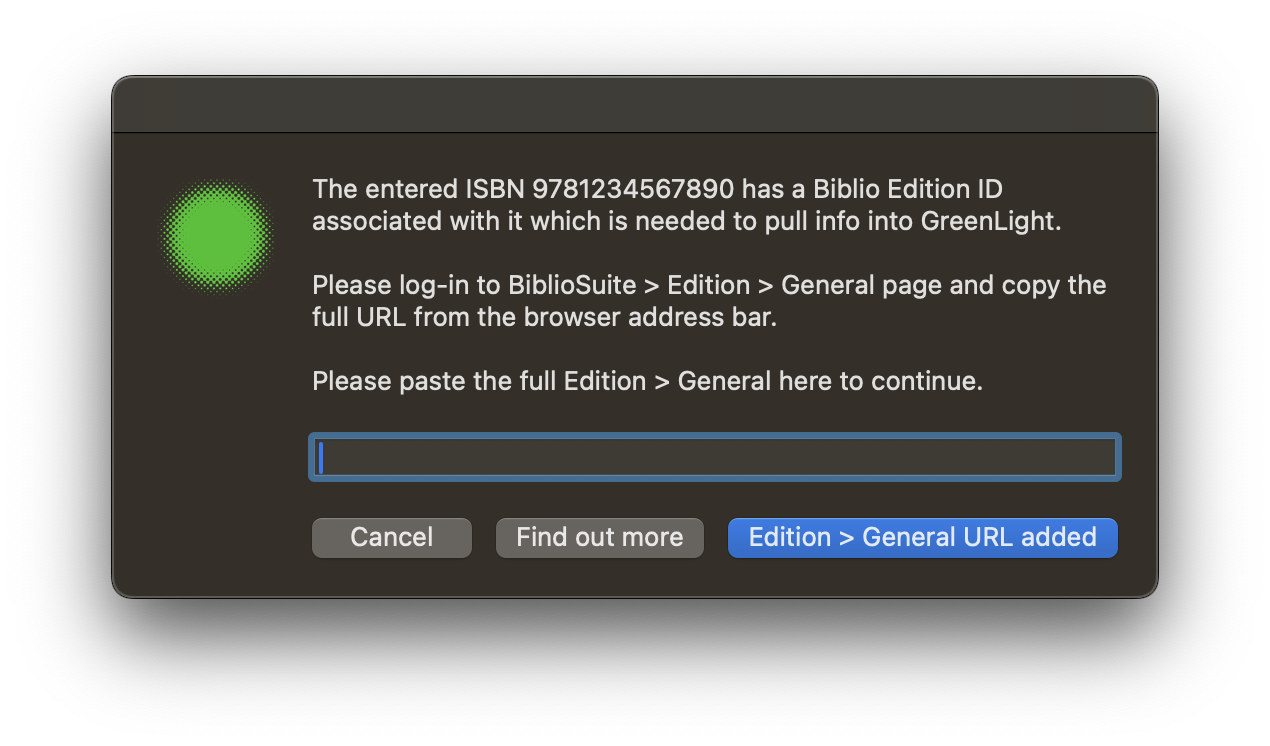
The entered Edition ID number is then processed and the GreenLight process will then continue as expcected.
If there is an issue with the Edition number an alert is shown.


