Masking a Cover
GreenLight can quickly preview the individual parts of cover artwork whilst still in InDesign
Whereas InDesign's preview will always show all adjoining pages, GreenLight enables designers to view individual parts of their covers in isolation. e.g. only the spine.
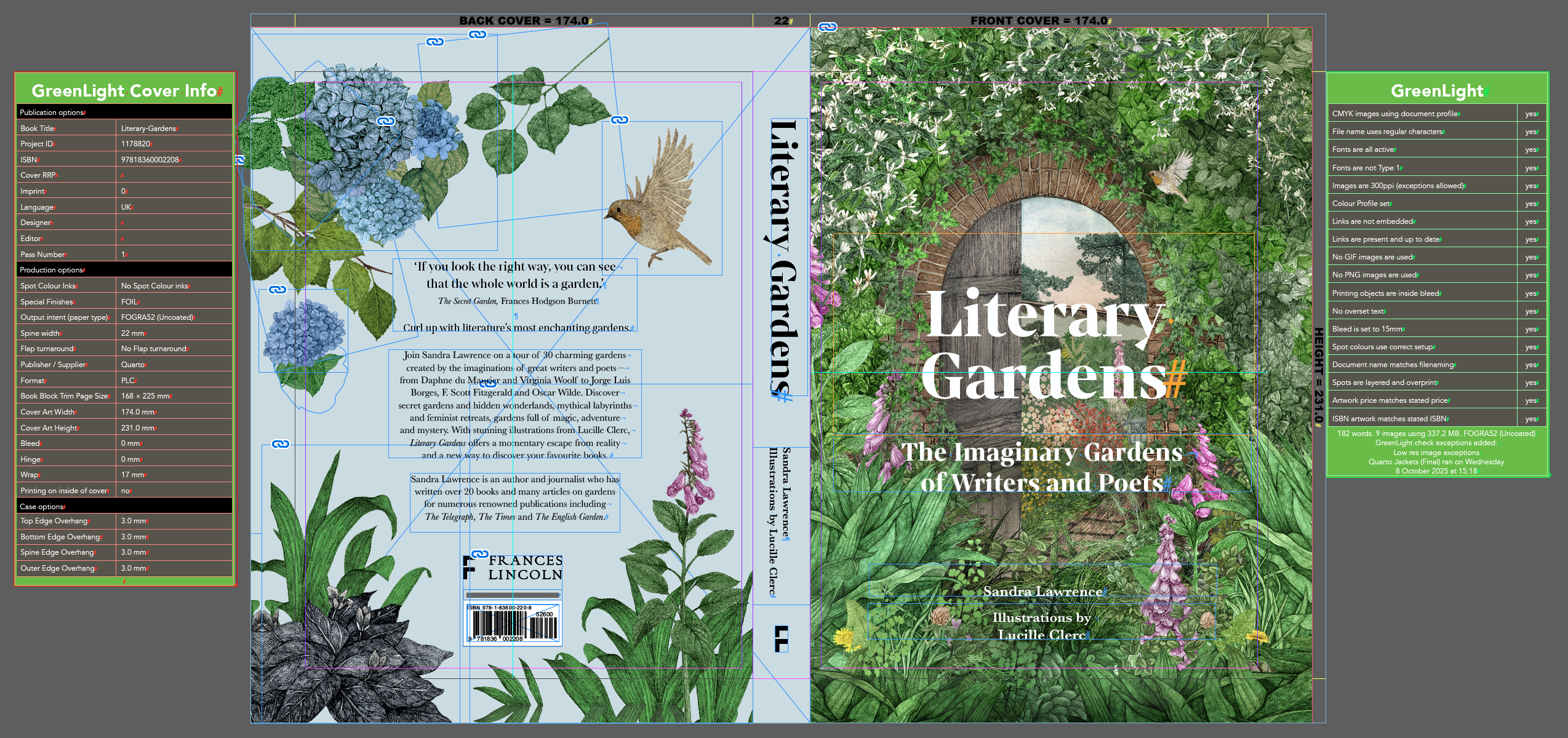

This article explains how to work with existing GreenLight covers. To create a cover, see the tutorial Creating print ready covers to publisher specs
GreenLight generates cover documents of individual correctly sized InDesign pages arranged as spreads.
Multiple pages for each part of the cover or jacket – e.g. front and back covers, spine and flaps – are arranged together in an InDesign spread with the requisite bleed.
This is the correct setup for production but viewing it this way can make design decisions more difficult. Viewing cover artwork in isolation can therefore help with this process. e.g. the alignment and centring of content on a front cover or spine.
Masking a cover
- Select any object on the page in question
- Choose GreenLight View menu > Mask Cover (⌘1)
GreenLight masks the other parts of the cover to preview solely the page of the selected object - Press the Escape key esc to exit the preview
Tip: With no object selected GreenLight will preview the front cover by default.