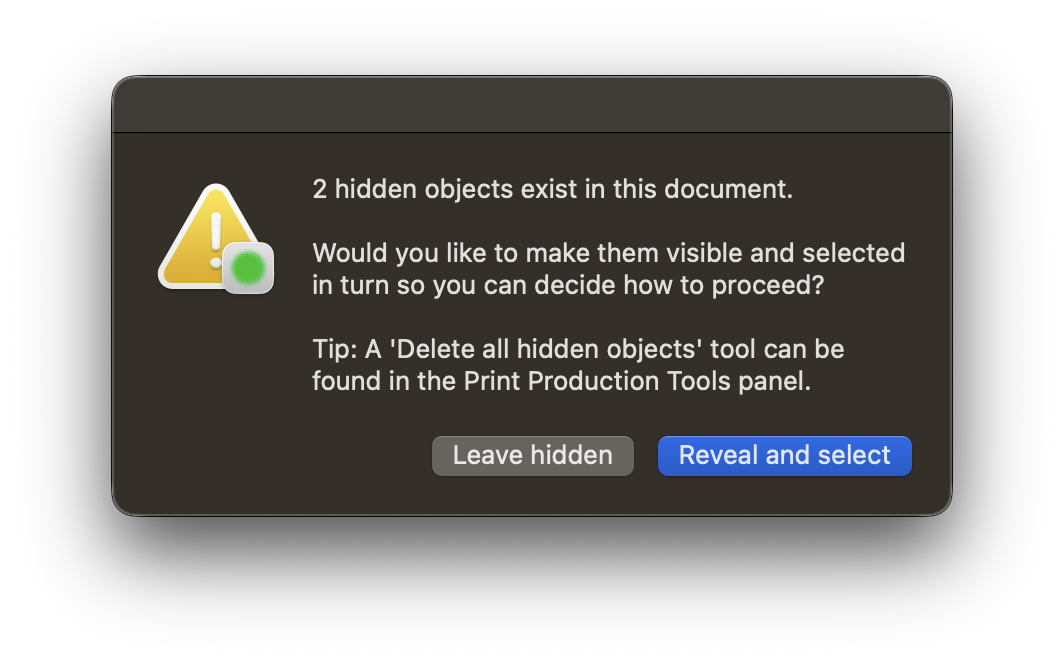
No hidden objects
This check reveals when objects exist in an InDesign document with their visibility set as hidden
It may be useful to hide objects in the InDesign document, whilst working on different design ideas or to make temporary notes that are not intended to be exported.
Objects can be hidden in two different ways in InDesign – from the InDesign Object menu > Hide and the Layers panel (by clicking the eye symbol)
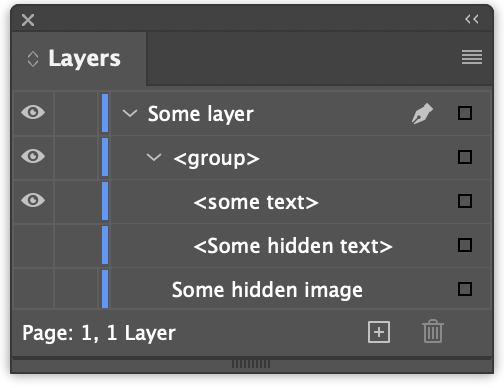
However, hidden objects at final files stage can cause confusion, may disrupt the production process, or can maintain links to images or fonts that are superflous to requirements.
This GreenLight check will initially flag when hidden objects exist in a document in the usual way in the GreenLight report:

In order to resolve this situation, GreenLight offers two ways to deal with it:
- Step through, object by object, to move to and make each visible and selected in turn.
NB: These are now changed to visible objects which can then either be retained as part of the layout or removed from the document by the user - Remove all hidden objects in one click using the Delete all hidden objects tool in the Print Production Tools panel from the GreenLight Tools menu