


MasterPlan Online Client Admin
Client Admin Users can manage Jobs and Users centrally in the admin area of MasterPlan Online
Users of MasterPlan Online who have the Client Admin status can make client-wide changes:
To access MasterPlan Online Client Admin settings
- Log in to MasterPlan Online
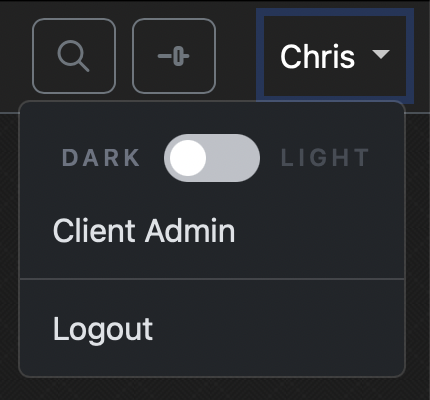
- Click on your name and choose Client Admin at the top right of MasterPlan Online
Once in Client Admin view, a list of client settings are shown on the left with the Job Maintenance setting chosen
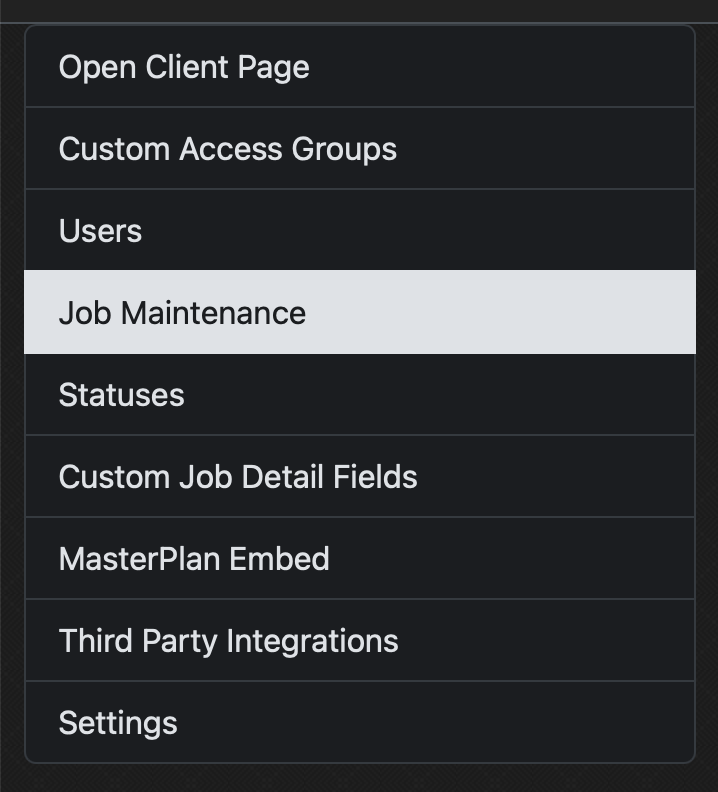
You can access client settings in the following ways:
Open Client Page
A quick link back to the Client Page showing Search across all publications and clickable covers of every available MasterPlan job along with statuses of WORK jobs.
Custom Access Groups
A list of active Access Groups (controlling access to MasterPlan content for designated groups).
Click Add New Custom Access to specify a new Access Group with restrictions added for certain jobs, statuses, spread ranges.
The Access Visualiser shows a quick preview of how jobs will be viewed by Access Groups and individual users.
See Creating an Applying Access Groups for more info.
Users
Click the Add New User button to add a registered Circular Software User to this MasterPlan Client by entering their DesktopID (User ID Number), full name and email address, assigning an Access Group and allocating Client Admin and Job Admin rights as appropriate.
Note: MasterPlan Online only users (without the need for the Mac Desktop Application) can be allocated any unique ten digit number as their DesktopID.
Active Users are listed with their unique ID, name and email address.
Click a user name to edit the user, to update their DesktopID (User ID Number), assign an existing Access Group and grant Client Admin and Job Admin rights.
Click the Save User button to save changes.
Users can be removed from a client with the Remove User button.
Job Maintenance
The Job Maintenance page shows an overview of all MasterPlan jobs.
Enter any text in the Filter Jobs field to instantly filter jobs by matching Name, Job Number or ISBN.
Use sliders to filter jobs by their WORK / LIVE mode along with their publication type: Visual PDF / Textual EPUB / Visual JPEG / Audiobook / Visual EPUB / Data Only.
Each job displayed shows a cover thumbnail, a label indicating LIVE or WORK mode and the job title. Hover over the title to see the Job Number. Click the title to open the Job page in a new browser window.
BookSite clients can click an additional link icon to open the job page on their BookSite.
Click buttons on the cover thumbnail to either Delete a Job or Edit Job Details. More info available at Editing Job Details.
Statuses
The six statuses that can be applied to WORK mode spreads are listed here.
Choose the name and the colour of each status to suit your workflow and click Save Statuses to apply to all WORK mode jobs. More info available at Spread Statuses.
Custom Job Detail Fields
Along with artwork and content, MasterPlan can store and present additional information about the MasterPlan jobs e.g. Author info, RRP, page extent and much more.
Manually specified fields can be added by clicking + Add Field, choosing a field type and entering a Label, optional help text and more options as required.
Alternatively, a specific data structure e.g. ONIX can be imported from a JSON file or a feed from a linked BookSite.
MasterPlan Embed
Create a secure embed code to place a customised view of MasterPlan content into any allowed website.
Specify Publication Options to choose which content, access groups, embed type, default appearance.
For MasterPlan WORK jobs choose from additional options including the ability to add annotations and display statuses.
Add Header Options to set the content, functionality and position of the embedded MasterPlan header bar.
Choose from a list of Sharing Options to send a preview link to social media platforms and a URL link for email and direct messaging.
Custom CSS Options allow full customisation of fonts, sizes, colour schemes for the appearance of the embedded MasterPlan to best match the host site.
More info available at Creating Embed Codes.
Third Party Integration
MasterPlan integrates with a number of additional plugins and connects with some third party applications to provide enhanced functionality.
Analytics – Enable and filter analytics of your MasterPlans to monitor usage, count job and spread views, discover reading habits and track interactions.
More info available at Adding Analytics to MasterPlan.
SIDD – SIDD connects people, documents and images to a lightweight but powerful and centralised source for contextual image descriptions.
More info available at SIDD (Simple Image Descriptions Database).
Webflow – Webflow empowers designers to build professional, custom websites in a completely visual canvas with no code.
Enable MasterPlan to connect to the Webflow CMS for the supply of content and custom job details.
Settings
The Client Settings control the set-up and default settings covering how users can access and view MasterPlans.
For technical users the API Settings determine how systems or services can interact with MasterPlan API.
Also for technical users, the AWS Settings specifc how MasterPlan links to their Amazon Web Services (AWS).
The Watermarks, and Share Images tab is used to control the watermarks applied by MasterPlan at spread, job or client level along with the backgroud images appleid to sharing and ShowCase embeds (coming soon…)
More info MasterPlan Client Settings


