


Individual users can have their individual access set in their user settings.
By default all users have access to all jobs for their client but you may wish to invite specific users only to see and work on some of your current MasterPlan WORK jobs.
Choose to allow access to None, All or Only a Range of spreads on a per user and per job level.
Alternatively, choose the Assign Custom Access Level to quickly specify an Access Scheme.
A cover image is used for quick visual identification of a job via the client page and job page.
Admin Users can add any web as a cover image in the Job Details Cover Image URL field after clicking the Edit Details button in the Job Admin page.
MasterPlan is aimed at supporting the creation and production of pages of illustrated publications and is not recommended for managing the production of complex cover files.
When first subscribing to use MasterPlan you choose a Client Name and you will be allocated a Client Number.
A client can be an individual but typically a client will have multiple users working together on one or more jobs.
Only users that are assigned to this client can then modify the spreads that are included in the job page for that client.
The Client Name is displayed in the MasterPlan Info Panel which is displayed on launch and can be found using MasterPlan menu > MasterPlan Info Panel.
The Client Number is used to identify the client when switching between clients and adding MasterPlan stamps.
An Admin User can set up Access Schemes to quickly apply the same level of access to multiple users.
Click Add New Custom Access to set up new Access Schemes, click the name of existing Access Schemes to edit them.
For example you may allow internal production staff complete access to all MasterPlan WORK jobs but restrict sales staff to only viewing completed jobs.
Access Schemes are applied when managing users.
You may wish to offer clients and others to have access to certain MasterPlan job pages or even entire client pages.
Admin Users can embed a customised view of MasterPlan inside other webpages.
You can choose this to be behind a button or link and whether presented in a 'lightbox' style overlay or within an iframe.
To create an embed code, after logging in as an Admin User and selecting Client Admin, click the Embed tab and customise the content and appearance of the MasterPlan embed.
Click Edit button to view and edit Job Details
After creating a new MasterPlan WORK job using the MasterPlan desktop app an Admin User can alter existing jobs in a number of ways using MasterPlan online.
To amend job options, visit a Job page after logging in as an Admin User and select Job Admin from the top right corner
The Job Page is now shown with extra admin preferences.
Admin Only restricts access to an entire Job to Admin users only.
At a spread level, individual spreads can be restricted to Members Only with a check box. Along with Access Schemes this is another way to restrict access to certain sections of a work in progress from general access.
The Toggle All/None for Members Only provides a quick way to switch all spread access in this way in one click.
The Hide Members Only Spreads to Non-Members choice allows spreads which are marked as members only to be either blurred and watermarked (to show a representation of their amount and place within the page order of the book) or to be completely hidden from non-members.
The Show Overlays and Enable Annotator check boxes control whether to show overlaid info on when who last worked on a spread and whether to allow comments to be added using the Viewing and Commenting panel.
If allowing commenting then uncheck the Allow non-users to annotate to restrict comments to only being added by logged in users.
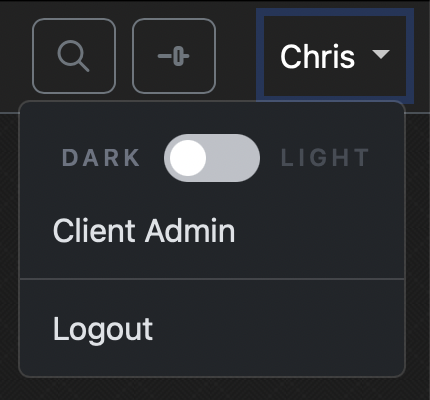
After logging in as an Admin User, move to the Client Admin section of MasterPlan Online by clicking your name at the top right corner of any MasterPlan Online and selecting 'Client Admin' or going directly to circularsoftware.com/MasterPlan/admin/Client0001 (replacing the client number with your own)
Users are identified using a ten digit Circular Software ID that is unique to the Mac they are using. Ask your users to install MasterPlan and give your their ID number which can be copied with menu command Set-up > Copy Your User ID Number.
To add a new user in the Client Admin section of MasterPlan Online click the 'Add New User' button.
Enter the User ID number in the DesktopID field then continue to add name and email address. On creation the user will be emailed and invited to choose and confirm a password when they first login.
When logged in, the user's name is added to MasterPlan WORK comments and can be used to control which jobs and spreads a user can see and comment on.
Only users that are entered here are able to work on the MasterPlan jobs for your client.
To amend details of a user, click on their name in the displayed list. Names and ID numbers can be altered here as frequently as required and changes here will automatically allow / disallow users to work on jobs for the client.
Admin Users can alter the wording and colours for statuses used by MasterPlan WORK at a client level.
These statuses are applied to spreads in the Viewing and Commenting panel and can be used to filter the Job Page.
To amend statuses for your client, after logging in as an Admin User and selecting Client Admin click the Statuses tab and alter the labels and colours.
Admin users can manage existing and add new users through Client Admin:
After logging in as an Admin User, move to the Client Admin section of MasterPlan Online by:
A number of concurrent users is included in your subscription to MasterPlan WORK.
Users are identified using a ten digit Circular Software ID that is unique to the Mac they are using.
Ask your users to install MasterPlan and give you their ID number, which can be copied by choosing the command MasterPlan Set-up nenu > Copy Your User ID Number.
To add a new user in the Client Admin section of MasterPlan Online click the Add New User button.
Enter the User ID number in the DesktopID field, then continue to add name, email and choose and confirm a password.
This password is used to identify the user within MasterPlan Online. When logged in, the user name is added to comments and can be used to control which jobs and spreads a user can see and comment on.
Only users that are entered here are able to work on the MasterPlan jobs for your client.
To amend details of a user, click on their name in the displayed list.
Names and ID numbers can be altered here as frequently as required and changes here will automatically allow / disallow users to work on jobs for the client.
As well as the regular visual user interface MasterPlan Online can be rapidly and automatically controlled using an application program interface (API).
Everything can be controlled by the Admin User, automatically, at a large scale and at speed.
For example, the MasterPlan desktop app makes use of the MasterPlan API to feed MasterPlan Online with content and to retrieve comments.
As this is a User Guide the full API is not described in detail here. Please visit circularsoftware.com/MasterPlan/api/ documentation and contact us to work with our API.
Users of MasterPlan Online who have the Client Admin status can make client-wide changes:
Once in Client Admin view, a list of client settings are shown on the left with the Job Maintenance setting chosen
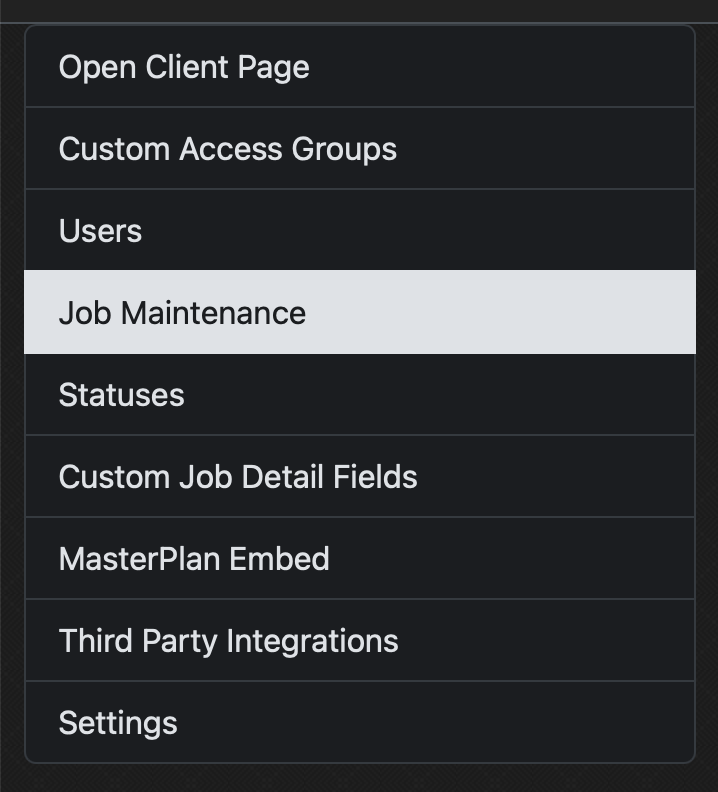
You can access client settings in the following ways:
A quick link back to the Client Page showing Search across all publications and clickable covers of every available MasterPlan job along with statuses of WORK jobs.
A list of active Access Groups (controlling access to MasterPlan content for designated groups).
Click Add New Custom Access to specify a new Access Group with restrictions added for certain jobs, statuses, spread ranges.
The Access Visualiser shows a quick preview of how jobs will be viewed by Access Groups and individual users.
See Creating an Applying Access Groups for more info.
Click the Add New User button to add a registered Circular Software User to this MasterPlan Client by entering their DesktopID (User ID Number), full name and email address, assigning an Access Group and allocating Client Admin and Job Admin rights as appropriate.
Note: MasterPlan Online only users (without the need for the Mac Desktop Application) can be allocated any unique ten digit number as their DesktopID.
Active Users are listed with their unique ID, name and email address.
Click a user name to edit the user, to update their DesktopID (User ID Number), assign an existing Access Group and grant Client Admin and Job Admin rights.
Click the Save User button to save changes.
Users can be removed from a client with the Remove User button.
The Job Maintenance page shows an overview of all MasterPlan jobs.
Enter any text in the Filter Jobs field to instantly filter jobs by matching Name, Job Number or ISBN.
Use sliders to filter jobs by their WORK / LIVE mode along with their publication type: Visual PDF / Textual EPUB / Visual JPEG / Audiobook / Visual EPUB / Data Only.
Each job displayed shows a cover thumbnail, a label indicating LIVE or WORK mode and the job title. Hover over the title to see the Job Number. Click the title to open the Job page in a new browser window.
BookSite clients can click an additional link icon to open the job page on their BookSite.
Click buttons on the cover thumbnail to either Delete a Job or Edit Job Details. More info available at Editing Job Details.
The six statuses that can be applied to WORK mode spreads are listed here.
Choose the name and the colour of each status to suit your workflow and click Save Statuses to apply to all WORK mode jobs. More info available at Spread Statuses.
Along with artwork and content, MasterPlan can store and present additional information about the MasterPlan jobs e.g. Author info, RRP, page extent and much more.
Manually specified fields can be added by clicking + Add Field, choosing a field type and entering a Label, optional help text and more options as required.
Alternatively, a specific data structure e.g. ONIX can be imported from a JSON file or a feed from a linked BookSite.
Create a secure embed code to place a customised view of MasterPlan content into any allowed website.
Specify Publication Options to choose which content, access groups, embed type, default appearance.
For MasterPlan WORK jobs choose from additional options including the ability to add annotations and display statuses.
Add Header Options to set the content, functionality and position of the embedded MasterPlan header bar.
Choose from a list of Sharing Options to send a preview link to social media platforms and a URL link for email and direct messaging.
Custom CSS Options allow full customisation of fonts, sizes, colour schemes for the appearance of the embedded MasterPlan to best match the host site.
More info available at Creating Embed Codes.
MasterPlan integrates with a number of additional plugins and connects with some third party applications to provide enhanced functionality.
Analytics – Enable and filter analytics of your MasterPlans to monitor usage, count job and spread views, discover reading habits and track interactions.
More info available at Adding Analytics to MasterPlan.
SIDD – SIDD connects people, documents and images to a lightweight but powerful and centralised source for contextual image descriptions.
More info available at SIDD (Simple Image Descriptions Database).
Webflow – Webflow empowers designers to build professional, custom websites in a completely visual canvas with no code.
Enable MasterPlan to connect to the Webflow CMS for the supply of content and custom job details.
The Client Settings control the set-up and default settings covering how users can access and view MasterPlans.
For technical users the API Settings determine how systems or services can interact with MasterPlan API.
Also for technical users, the AWS Settings specifc how MasterPlan links to their Amazon Web Services (AWS).
The Watermarks, and Share Images tab is used to control the watermarks applied by MasterPlan at spread, job or client level along with the backgroud images appleid to sharing and ShowCase embeds (coming soon…)
More info MasterPlan Client Settings
In WORK mode you can also choose from these additional options:
The following three options are available below:
For each spread displayed from your publication you can choose to specify whether their text is to be Searchable, to restrict viewing to Members Only and to select for Deletion
Some companies may have security questions or requirements which we aim to answer here:
Please contact us with any other security or hosting questions.
For MasterPlan the term job refers to one complete publication. A job can consist of one or multiple InDesign documents, and can be worked on by one or multiple users.
To start using MasterPlan there needs to be at least one job.
For Free Trial users, new jobs can be created by anyone.
For Pro users, only licensed users can create new jobs.
To make a new job using the MasterPlan app choose
the MasterPlan menu command Set-Up > Create a new MasterPlan then fill out short form to name your MasterPlan and to specify the number of pages.
For Free Trial Users, your user details are also required. We ask for your User ID (see page 14) and up to two other ID numbers of InDesign co-workers who you wish to share this newly created MasterPlan with.
Co-worker ID numbers can be added later by contacting us.
We also ask for your name and email address so we can contact and support your use of our software. We never share your information, our privacy policy is available online at circularsoftware.com/privacy-policy
Instant information on MasterPlan WORK activity including uploads, commenting and thumbnail previews can be pushed out as Slack notifications at a job level so just the right people can stay in touch with changes via notifications on mobile, web and desktop apps.
MasterPlan uses Slack notifications rather than email which means you get live updates when you wish to have them but also these notifications can be easily silenced when you don't.
Admin Users can add a Slack WebHook URL in Job Details pane after clicking the Edit Details button in the Job Admin page.
All MasterPlan desktop app subscribers receive free email support by emailing help@circularsoftware.com
Monthly webinars which run through the MasterPlan Online and MasterPlan desktop app processes are free to attend.
Contact us for more details.
Admin Users for medium and large teams receive live one-to- one set-up training via screen-share.
Live presentations and training can be arranged on request.
Clients can easily invite new users, including freelancers, to join them in MasterPlan without the end user needing to arrange their own subscription.
Admin Users also have extra power to create and add cover files, choose who can view and comment and alter the status labels displayed for a client.
The initial Admin User is set up when first subscribing – additional users can then be created and promoted to the same status by an existing Admin User.


