Prevent cover objects repositioning
GreenLight allows the user to choose to avoid the repositioning of cover objects when amending covers
GreenLight covers are created to correct, calculated dimensions, and common objects such as imprint logos, prices and barcode boxes are all accurately positioned to their relative positions for the cover size.
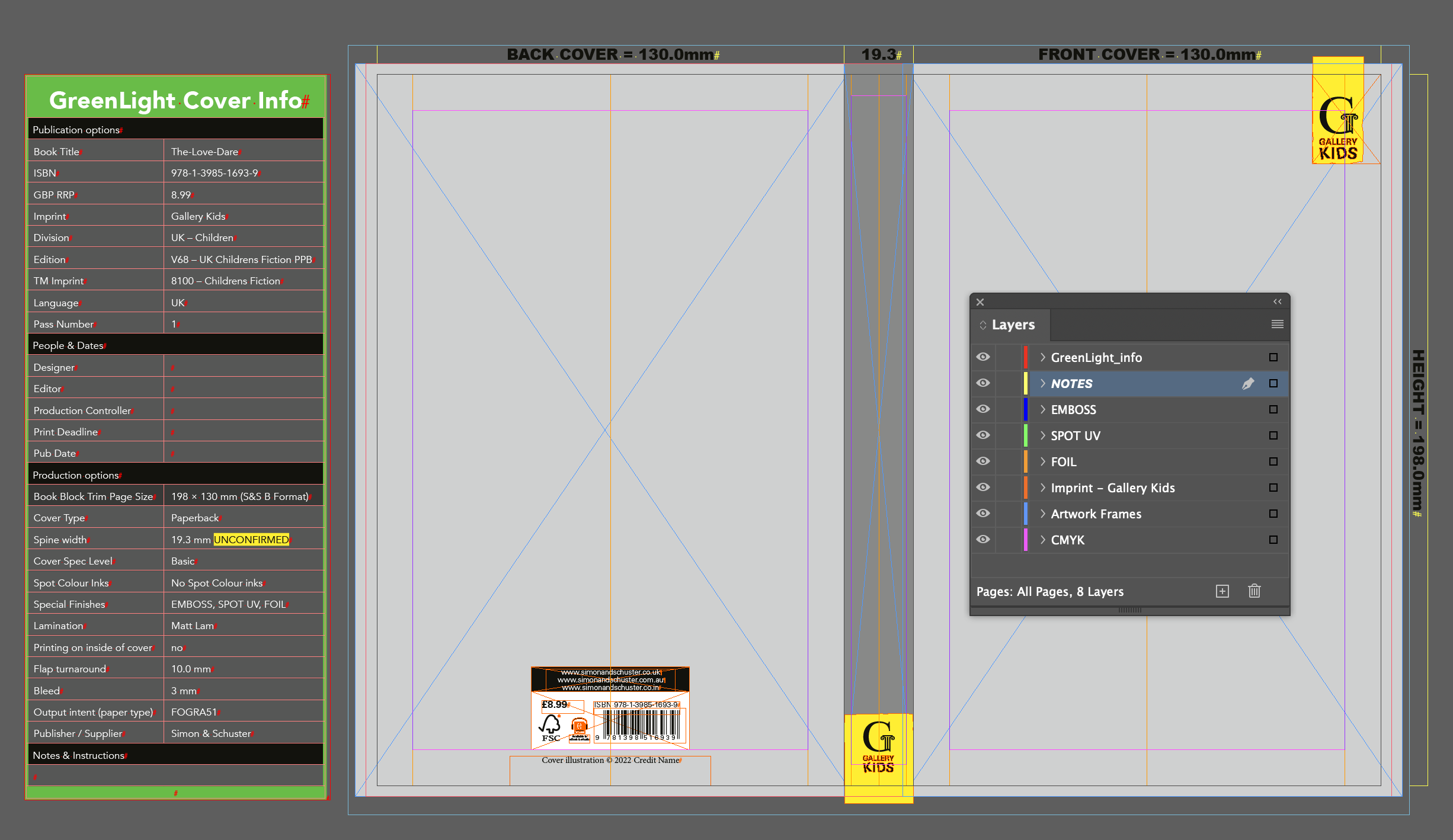
When amending cover dimensions with GreenLight's Amend cover command these objects may automatically reposition to the correct location by default. e.g. a barcode box may recentre.
NB: Repositioning only occurs to objects on the GreenLight Artwork or Imprint layers. InDesign objects added by the user always remain unaffected.
However, if the user wishes to prevent this automatic repostioning GreenLight allows this to be done either globally or selectively.
Preventing all cover objects from repositioning
- Choose GreenLight Create menu > Prevent cover objects repositioning
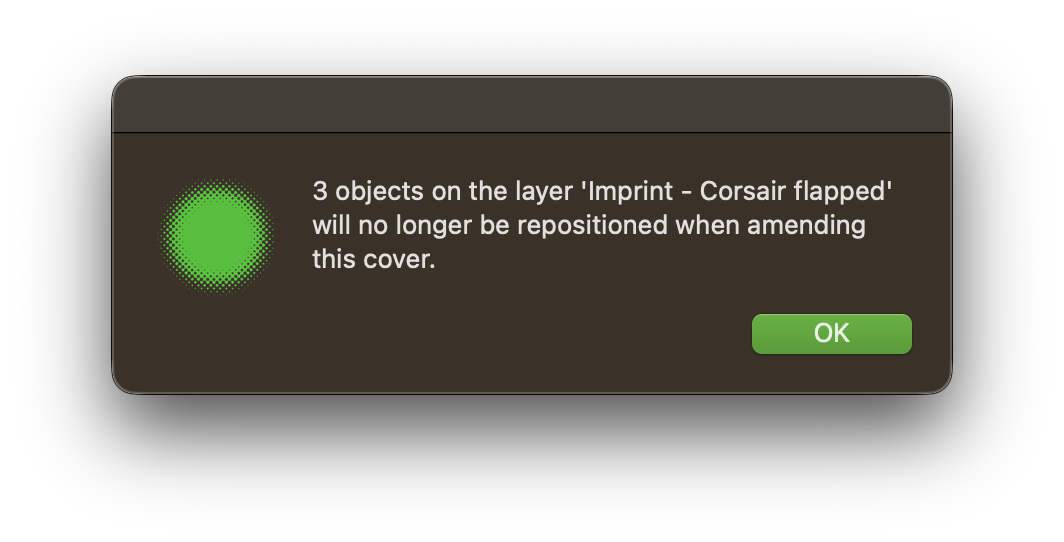
- A dialog box confirms the number of objects that will no longer be repositioned. Click OK.
Preventing individual cover objects from repositioning
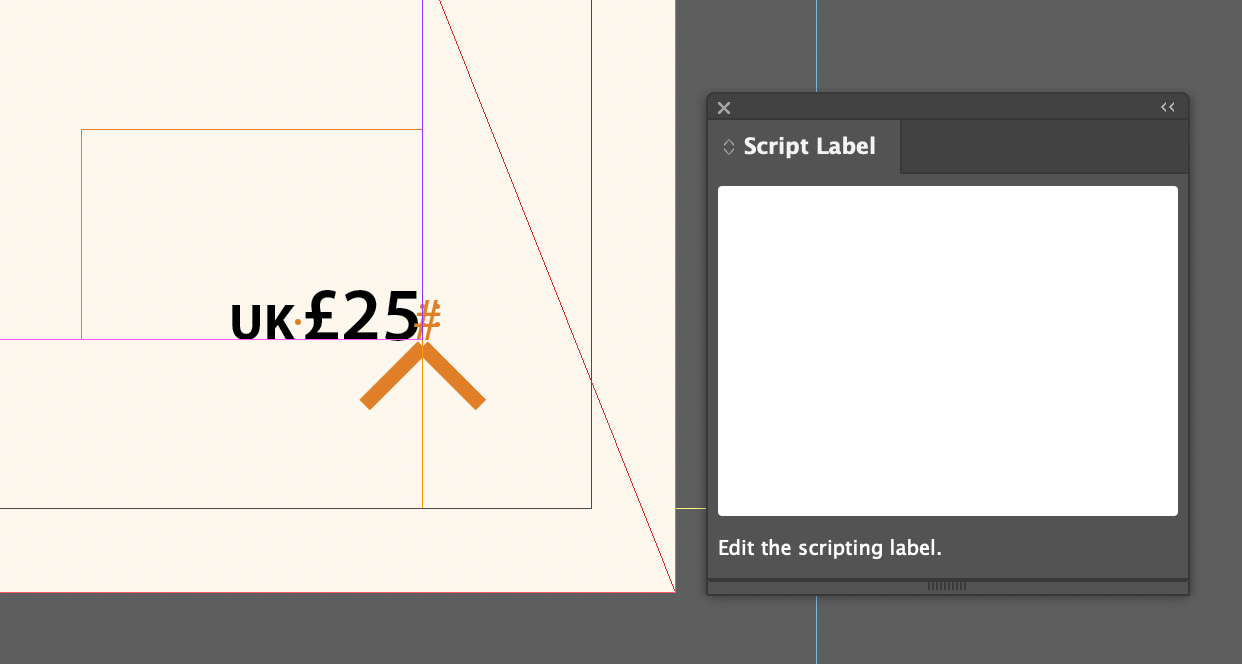
The relative position of individual objects in InDesign is determined by their instructions recorded in the Script Label panel. Removing this text prevents the object from repositioning if the cover is later amended.
- Select the object (or group) with the InDesign Selection tool
- Choose InDesign Window menu > Utilities > Script Label to see its current instructions
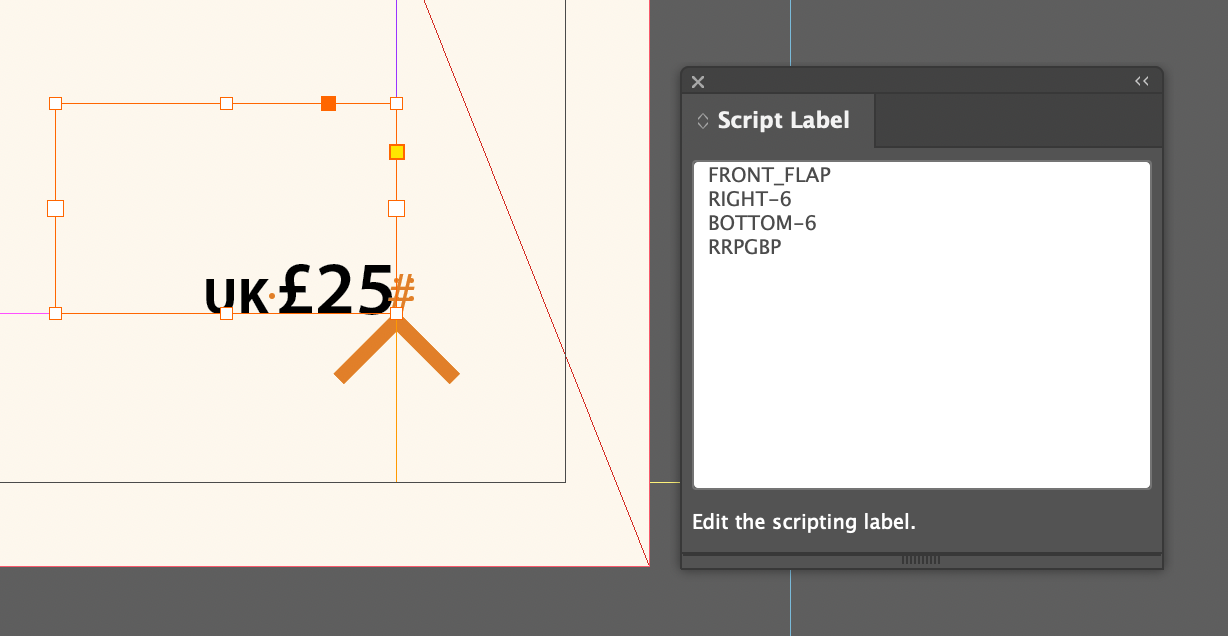
- Select and delete all the instruction text from the Script Label panel
- Click back on the page to confirm the change