


Selecting Featured Spreads
Choosing the spreads that best represent the book in BookSite presentations
Bookshelf for Bonnier features auto generated presentation slides for every title, which can be pulled together into Collections.
Along with the latest front cover artwork and Biblio sales and production data there are four spreads included to show examples of the book's internal pages.

Each slide has space for one lead featured spread and three additional featured spreads.
The featured spreads to be used for a title can be altered by users either in InDesign with GreenLight or online with MasterPlan.
Specifying Featured Spreads in GreenLight
- Go to the InDesign spread to be featured. The active page number is shown bottom left of the InDesign window

Tip: The visible spread may not be the active spread. To ensure it is select an object on the spread, use the InDesign Layout menu > Go to Page (⌘J) or double-click the spread thumbnail in the Pages panel.
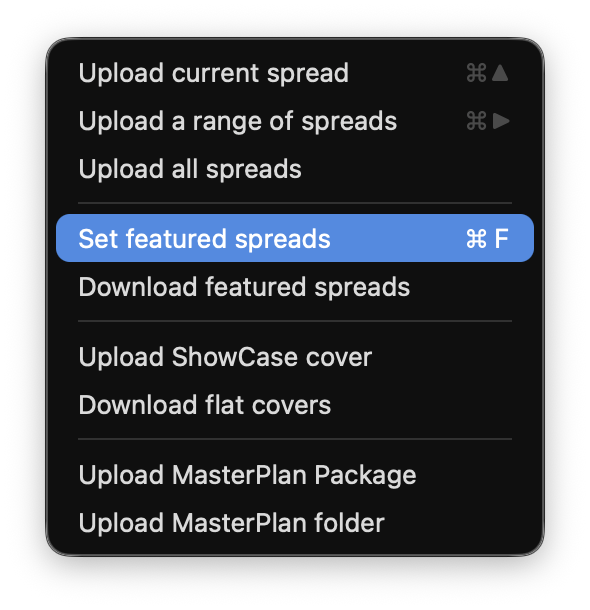
- Choose GreenLight Upload menu > Set featured spreads.
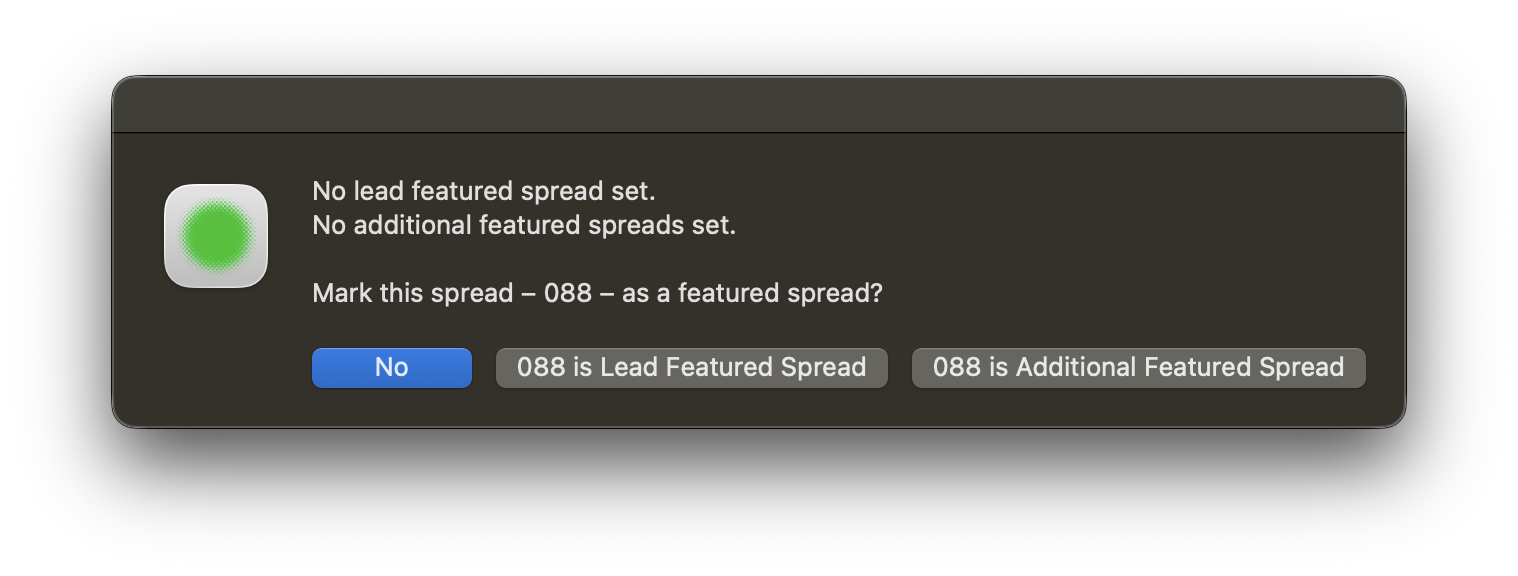
- To set the Lead Featured Spread click the 000 is Lead Featured Spread button
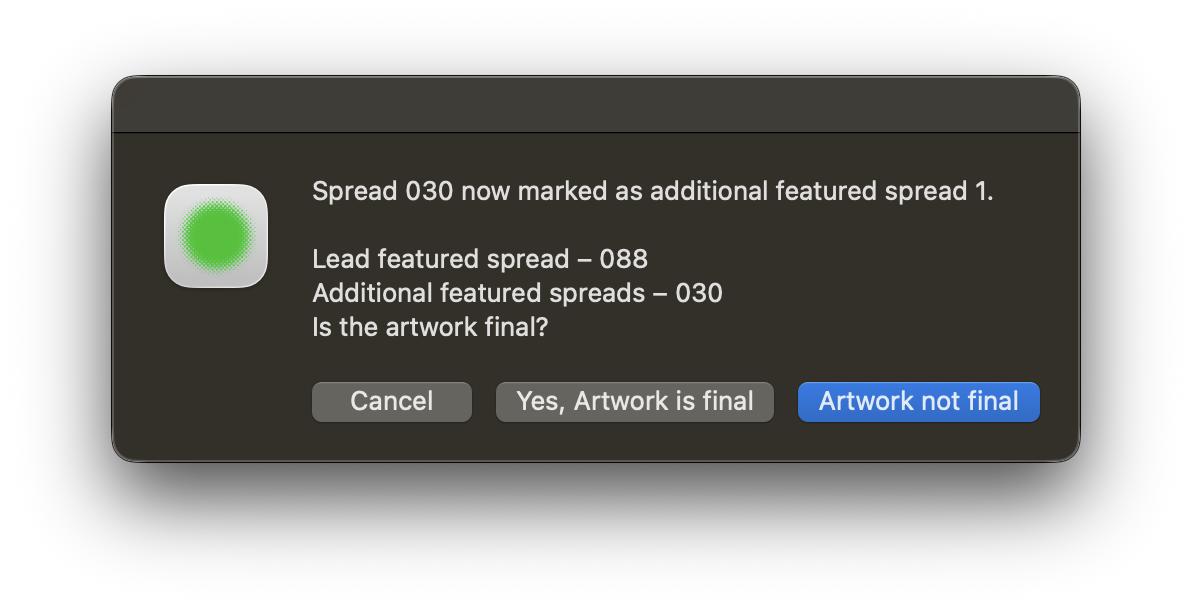
- To set three additional featured spreads, repeat steps 1-3 and instead choose the 000 is Additional Featured Spread button
- In the confirmation dialog, click to specify whether the artwork is final or still a work in progress. This is used to confirm on BookSite the status of the artwork.
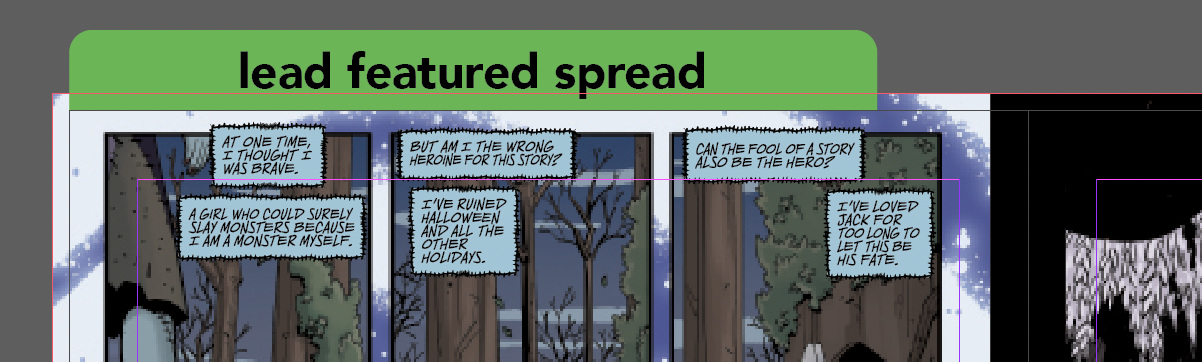
- A visual marker is added to the pasteboard of all featured spreads:
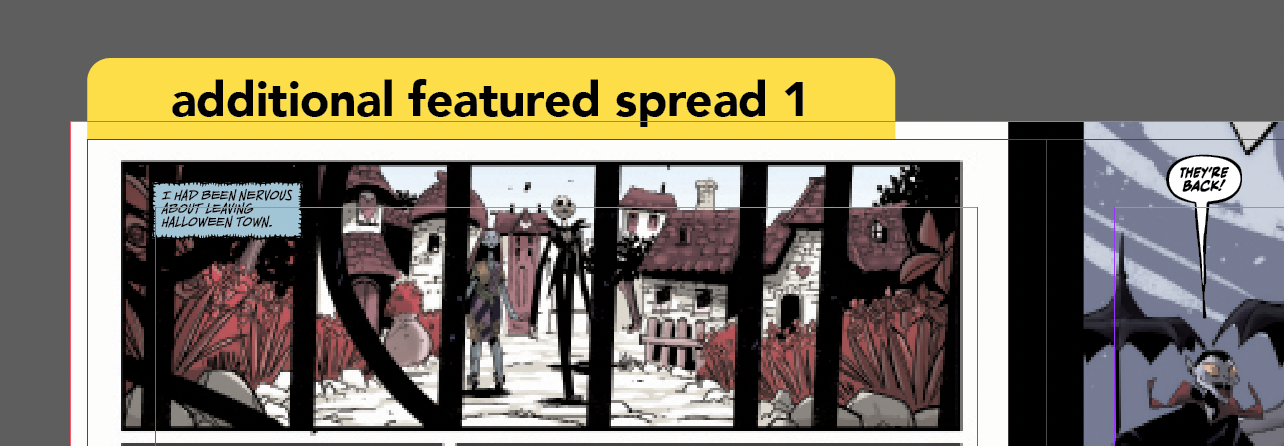
- The featured spread numbers and artwork status are automatically confirmed in the GreenLight Info panel and updated on MasterPlan
To alter the featured spreads in InDesign, repeat the steps above and choose replacement spreads when prompted.
Altering Featured Spreads in MasterPlan
Alternatively, featured spreads can be set and altered directly with MasterPlan, without the need for InDesign:
- After logging in to MasterPlan, open a MasterPlan Job in Job Admin mode

- Choose Edit Job Details
- Select Custom Job Fields tab

- Scroll down to Lead featured spread number field details and enter its three digit number
- In the Additional featured spreads list field below, enter three further three digit spread numbers separated by commas
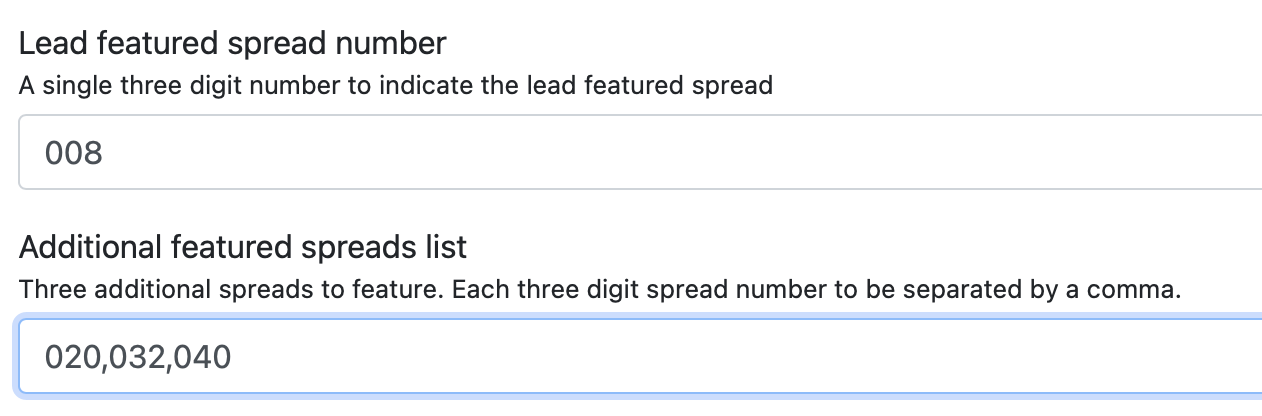
When entering featured spreads in this way, take extra care to use three digit spread numbers and to enter spreads that are present in the MasterPlan!
Use the even number of the left hand page for facing page spreads.
- Save and close the dialog to apply the changes.


