


With PDFs added using the previous PDF tools then the PDF text can be used to help add hyperlinks quickly.
Click this button to see a prompt with any URLs or email addresses found in the PDF text for the page you are on. After a confirmation you can then draw the area on the page which his to contain the link and then repeat the process by moving on to the next link found.
By using a tool like Markzware PDF2DTP the position of text can be quickly retrieved for use with other hyperlink tools.
We have developed other tools to lift PDF text to separate layers for preparing read aloud EPUB from PDF. Please contact us for instructions on preparing PDFs artwork for use with read aloud.
This article covers single page PDFs. An alternative tool to place PDFs in spreads is also available.
Choose CircularFLO Tools menu > PDF Tools or GreenLight Create menu > Place PDFs Into InDesign to import one or more PDFs into InDesign.
For either multi page PDFs (pages together in one document) or a folder of single page PDFs, each page of the PDF will be placed into a newly created page in InDesign.
Without a document open, imported PDFs are placed into a newly generated document.
The PDF trim box is measured and the PDFs are placed at trim page size. This means that existing print production PDFs with bleed and trim marks can still be used and only the trim page artwork is used in InDesign and with Circular Software.
If a PDF trim box is not present then the entire page size is used or a smaller trim page size can be manually entered.
NB: PDFs are added to a FLO_PDF layer which is used by CircularFLO to retrieve PDF text for search.
Text from placed PDFs is retrieved and can be viewed and edited in the InDesign Script Label panel InDesign Window menu > Utilities > Script Label.
When a placing additonal PDFs into an existing document (with the existing FLO_PDF layer) there are two further options to choose from:
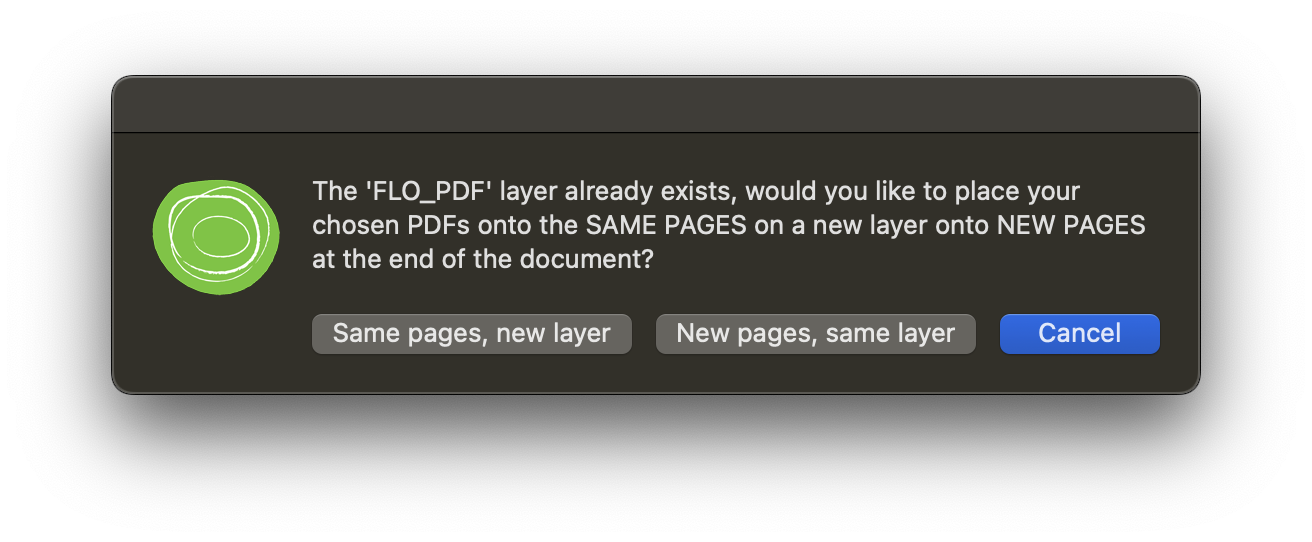
This add the PDFs to a new layer on-top of existing pagese.g. when recombining Co-Edition text on top of base artwork
This adds the PDFs to newly created pages at the end of the documente.g. to combine separate chapters into a single document
This article covers spread PDFs. An alternative tool to place PDFs in pages is also available.
Choose to Place spread PDFs Into InDesign from the CircularFLO Tools menu > PDF Tools panel to import one or more PDFs into InDesign.
For either multi page PDFs (pages together in one document) or a folder of PDFs, each page of the PDF will be placed into a newly created double page spread in InDesign.
Without a document open, imported PDFs are placed into a newly generated document.
The PDF trim box is measured and the PDFs are placed at trim page size. This means that existing print production PDFs with bleed and trim marks can still be used and only the trim page artwork is used in InDesign and with Circular Software.
If a PDF trim box is not present then the entire page size is used or a smaller trim page size can be manually entered.
NB: PDFs are added to a FLO_PDF layer which is used by CircularFLO to retrieve PDF text for search.
Text from placed PDFs is retrieved and can be viewed and edited in the InDesign Script Label panel InDesign Window menu > Utilities > Script Label.
When a placing additonal PDFs into an existing document (with the existing FLO_PDF layer) there are two further options to choose from:
This add the PDFs to a new layer on-top of existing pagese.g. when recombining Co-Edition text on top of base artwork
This adds the PDFs to newly created pages at the end of the documente.g. to combine separate chapters into a single document
Choose to Place spread PDFs Into InDesign from either the CircularFLO Tools menu > PDF Tools panel to import one or more PDFs into InDesign.
For multi page PDFs (more than one page together in one PDF file) each spread of the PDF is placed into a spread in InDesign.
Without a document open, imported PDFs are placed into a newly generated document. Two facing pages are added for each of the PDF spreads. This means the page count and numbering can be matched to the artwork in InDesign and used within Circular Software.
The PDF trim box is measured and the PDFs are placed at spread size. This means that existing marketing PDFs that have been created as spreads can still be used and only the trim page artwork is used in InDesign and with Circular Software.
If a PDF trim box is not present then the entire page size is used or a smaller spread size can be manually entered.
Text from placed PDFs is retrieved and can be viewed and edited in the InDesign Script Label panel. Show the Script Label panel using InDesign Window menu > Utilities > Script Label.
When a document is already open, this same button or command will offer to add chosen PDFs into the existing document giving the option to add to a new layer on-top of existing pages or to add to newly created pages ans the end of the document.
An alternative tool to place page PDFs is also available.


