


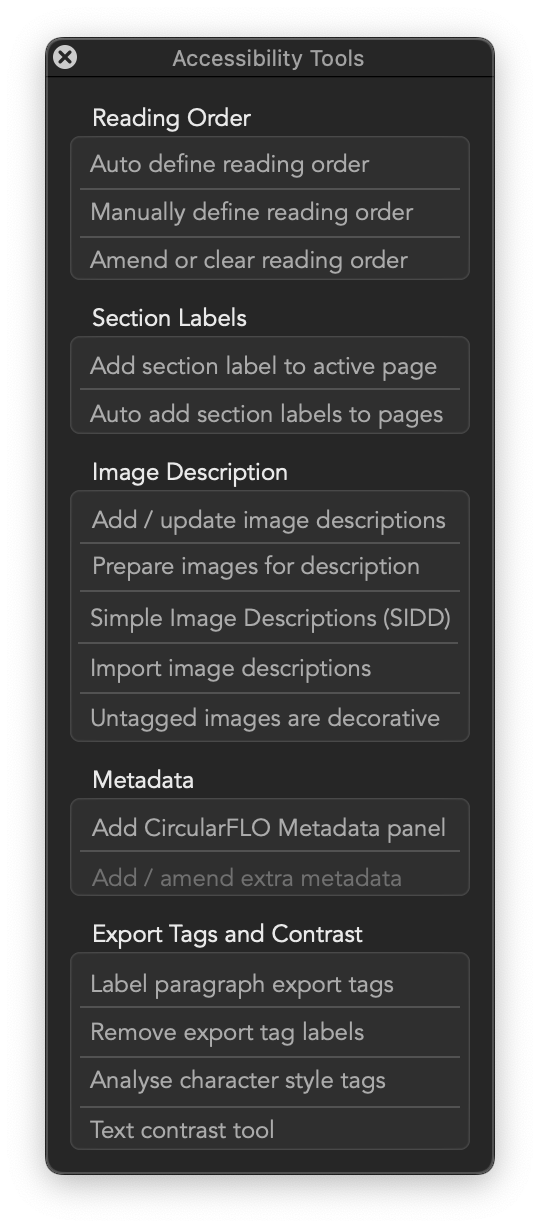
The Circular Software Accessibility Tools Panel (CircularFLO Tools menu or GreenLight Tools menu > Accessibility Tools) is home to various tools to help with setting up InDesign for greater accessibility in our CircularFLO exported ebooks. These tools are split into the following categories:
Each tool is explained in more detail on the Circular Software Tools page.
Accessibility Metadata is an important requirement for accessible EPUBs which describes the accessibility features of the EPUB.
Ebook distributors, platforms and retailers rely on this information to help readers, librarians and educators make informed choices on which ebooks they can offer to readers.
The Metadata Matcher tool affects InDesign's fixed layout EPUB export options to help CircularFLO users. Hold down the option key when clicking the tool to apply to reflowable EPUB export settings.
InDesign can include accessibility metadata with EPUB exports. CircularFLO also uses this same information.
But… this complex set of metadata options needs to be manually applied in every file and can only be added at the time of export in an easily missed tab.
With the free Metadata Matcher tool in GreenLight this accessibility metadata can be easily viewed, edited, applied, extracted and copied between documents.
The Metadata Matcher tool is available from GreenLight Tools menu > Accessibility Tools > Metadata > Metadata Matcher and expects a CircularFLO Metadata panel to be present on the active document's pasteboard.
The CircularFLO Metadata panel is an InDesign table containing all the industry standard metadata for declaring accessibility. Find out more in our article Accessibility metadata.
If not already present a new CircularFLO Metadata panel can be added from the GreenLight Tools menu > Accessibility Tools > Metadata > Add CircularFLO Metadata panel
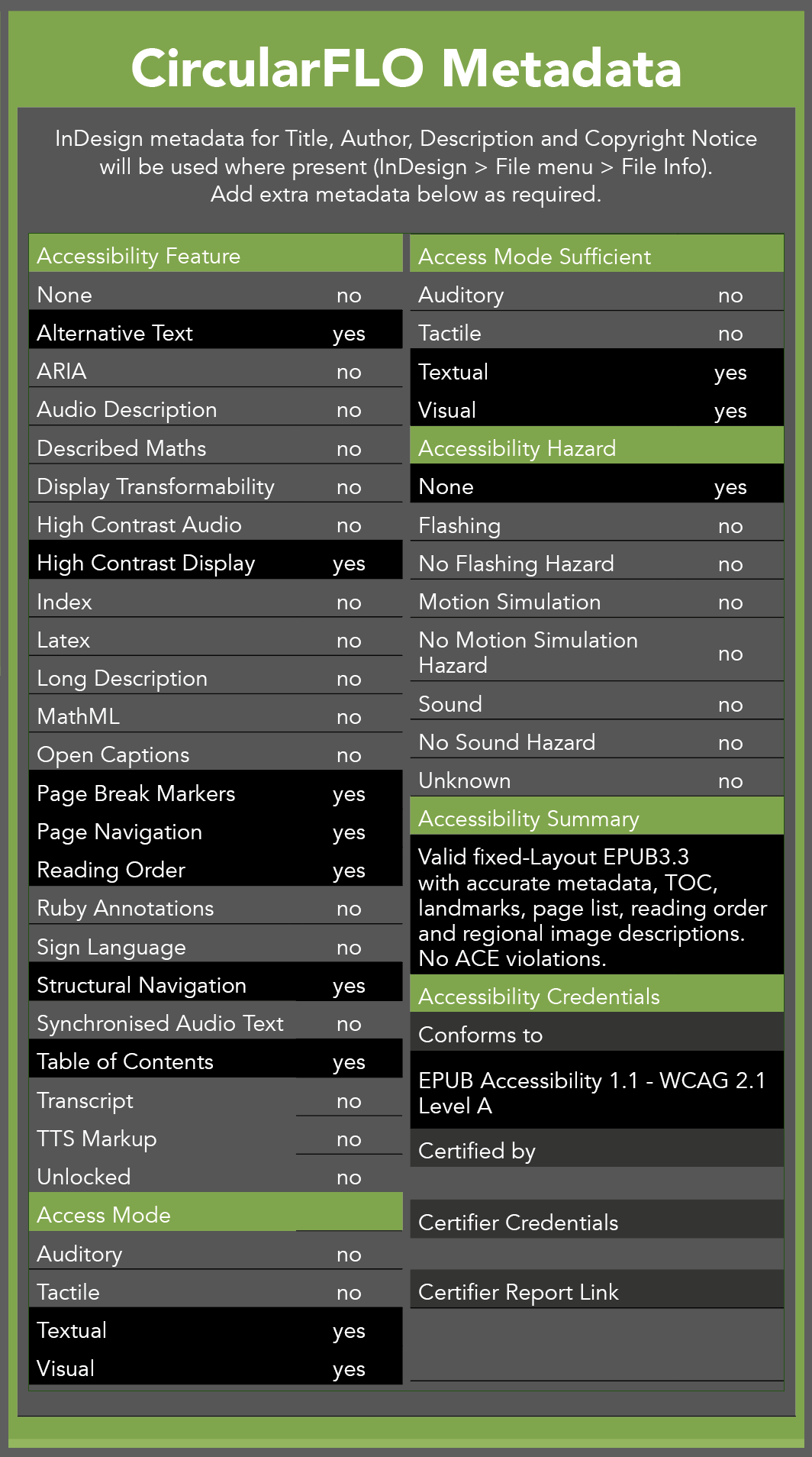
The CircularFLO Metadata panel can be edited using InDesign's Type Tool.
Declare which accessibility features are present in the document by changing a row value from no to yes.
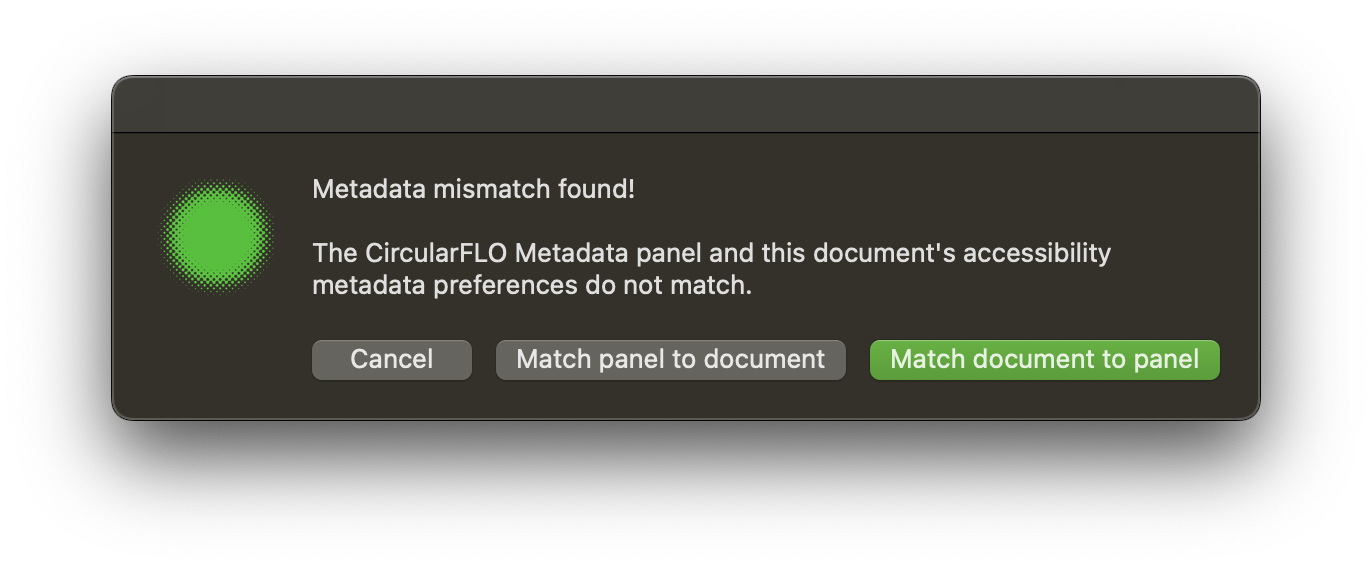
The metadata settings can either be pulled from the active InDesign document to the panel, or pushed from the panel to the export settings of the InDesign document, to synchronise them.
The panel rows will change from grey to black when metadata has been synchronised by running the Metadata Matcher tool.
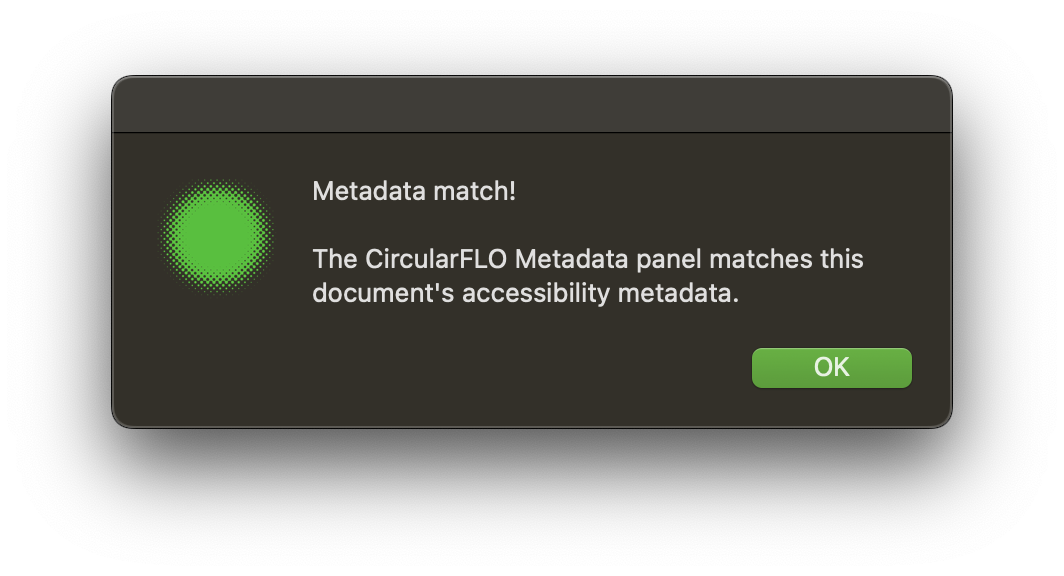
Click the Metadata Matcher tool to check whether the metadata is synchronised. If so, a dialog confirms this.
If a change is present then the dialog offers a choice, to match the InDesign document's export settings to the panel, or vice versa.
To apply the metadata from one document to another:


